What Are Business Printers and How Do They Work?
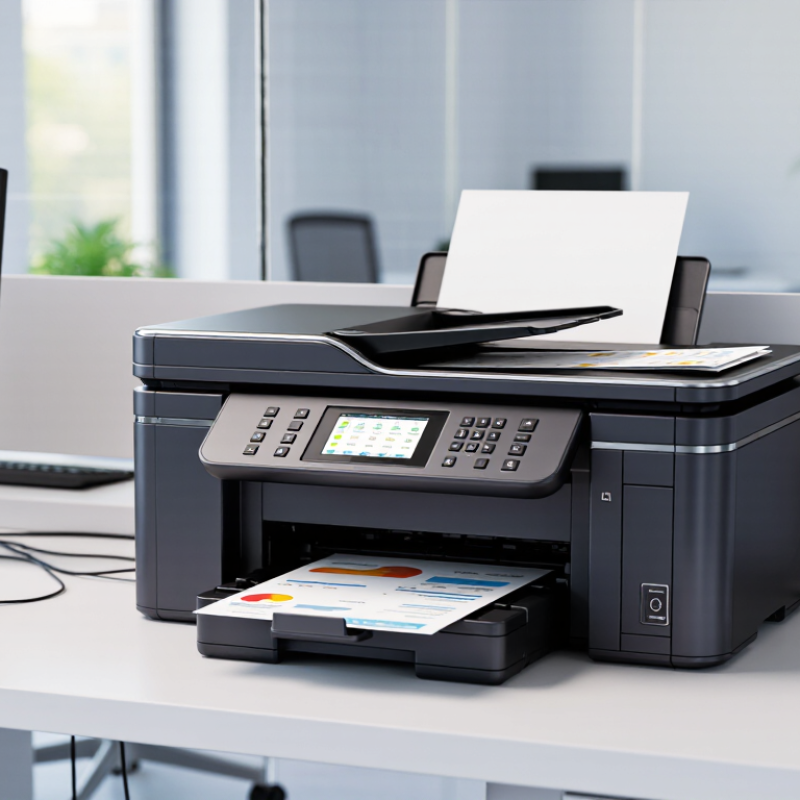
Business Printers are built to handle the steady demands of offices, schools, clinics, and other organizations. They produce invoices, reports, labels, and internal documents, often across several workstations. Unlike a basic home printer, a business model may include high-capacity paper trays, faster output, network access, and features such as scanning or duplex printing. Needs vary, though. A small office may print only a few dozen pages each day, while a busy department can send large jobs throughout the day.
The process begins when a computer or mobile device sends a document to the printer through a driver, print server, or network connection. The printer translates that data into instructions for placing ink or toner on paper. With a laser printer, for example, an imaging drum, charged toner, and heat work together to form the page. An inkjet model sprays tiny droplets through a print head. Paper moves through rollers, and sensors help guide it along. Small parts matter.
People sometimes judge a printer by speed alone. That can be a costly shortcut. Monthly workload, print quality, paper size, security settings, supply costs, and maintenance all affect whether a device suits a workplace. Some advertised speeds also depend on document type and settings, so real output may differ. Understanding how Business Printers work makes comparisons more practical. It also helps teams spot bottlenecks, choose suitable equipment, and set realistic expectations before the first paper jam.
What Defines a Business Printer?
A business printer is defined less by its casing than by the work it can sustain.
It handles repeated shared jobs, connects to office networks, and delivers predictable output throughout the workday. Common features include automatic double-sided printing, several paper trays, user permissions, and replaceable maintenance parts. Check the recommended monthly print volume, not just the peak-speed figure. That number better reflects normal use. When staff print invoices, forms, and long reports, a printer that frequently jams can quietly waste time and paper.
Security and manageability also help distinguish a business printer.
Quocirca’s 2023 Print Security Landscape survey reported that 61% of surveyed organizations had experienced print-related data loss during the previous year. That gap matters. User authentication, encrypted connections, and secure print release can reduce exposure, though they cannot fix weak office procedures. Network monitoring and clear service alerts help teams spot problems before a tray runs empty or a queue stalls. A small office may not need enterprise-scale capacity, and a bigger device is not automatically better. The right fit depends on print volume, document types, shared users, and the time available for upkeep. Even a sensible choice can be wrong if actual usage changes.
Key Components and Their Roles
A business printer is a coordinated system, not just a box that puts ink or toner on paper. Its controller receives a document, interprets page descriptions, and manages the print queue. Memory helps process complex files; network interfaces connect computers and mobile devices. The print engine then forms each page. In laser systems, a drum transfers toner, and a heated fuser bonds it to paper. Inkjet systems place tiny droplets directly onto the sheet. Different mechanisms, same goal. The paper path, rollers, trays, and sensors keep sheets moving and detect jams or low supplies. A duplexer turns pages for two-sided printing, reducing paper use when enabled.
The security components matter too. Authentication tools can hold a job until a user releases it at the device, while storage controls protect queued documents. Quocirca’s 2024 Global Print Security Landscape report found that 67% of surveyed organizations had experienced print-related data loss. That finding makes secure release more than a technical extra. Still, no single feature solves every risk; settings and staff habits matter. A printer may have strong controls, yet a forgotten page can sit beside the output tray. Small details count. The machine’s control panel and maintenance sensors also help operators spot errors, though alerts are not always clear. That part could be better.
What Are Business Printers and How Do They Work?
Representative Maximum Print Resolution by Printer Technology
Print resolution is one measure of the detail a printer can produce. These figures are representative examples, not universal specifications; actual resolution varies by model and printing mode.
Key Components and Their Roles
The controller processes a document and prepares it for printing. The print engine creates the image: a laser printer uses a laser and photosensitive drum to position toner, while an inkjet printer uses a printhead to place ink on the page. In a laser printer, a fuser bonds toner to the paper. Paper-feed rollers move sheets through the printer, and the output tray collects the finished pages.
How a Business Printer Processes a Print Job
A business printer begins work when a computer or office system sends a print job. The job may include a document, page size, color settings, and finishing choices. A printer driver translates these instructions into a format the device can process. For a shared office printer, the job often waits in a digital queue. It may pause there if another person is printing or the device needs attention.
The printer’s processor prepares each page as a printable image. This step is called rasterization. Text and graphics become patterns of dots, arranged to match the selected resolution. The printer then moves paper through its internal path and places toner or ink in the correct areas. In a laser device, heat helps bond toner to the page. In an inkjet device, tiny droplets form the image. The mechanics differ, but the goal is the same.
Not instant, exactly. A large file, high-resolution images, or double-sided printing can slow the process. The printer may also report a paper mismatch, low supplies, or a jam before continuing. These messages are useful, though they do not always explain the cause clearly. In practice, checking the queue and the paper tray can solve many delays. A finished page is released only after the device completes its printing and any requested finishing steps.
Common Types of Business Printers
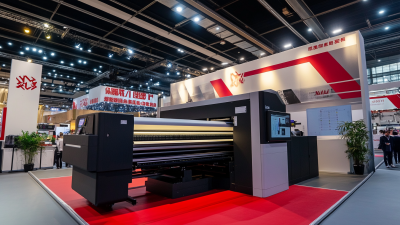
Business printers are designed for shared workloads, predictable output, and easier day-to-day maintenance. Laser printers use toner and heat to produce crisp text, making them useful for invoices, forms, and frequent reports. They are fast. Inkjet printers spray tiny droplets of ink onto paper. They handle color charts and photos well, though heavy use may require more frequent supply changes. Color can cost more.
Multifunction printers combine printing with scanning and copying, which can save space at a busy reception desk. Thermal printers use heat-sensitive paper or ribbons, so they are common for receipts and shipping labels. Wide-format printers produce oversized drawings, plans, or posters. They need more room, and their costs can be easy to underestimate. There is no perfect type; the right choice depends on volume, document quality, and available space.
Tips: Estimate monthly pages before choosing a printer. Check paper sizes, network access, and the cost of toner or ink. Print a small test batch with real documents, not just sample pages. A printer that looks efficient on paper may still frustrate staff during a rush.
Features That Support Workplace Printing Needs
What Are Business Printers and How Do They Work?
Features That Support Workplace Printing Needs
Business printers are designed for shared, frequent use, rather than occasional home printing. They receive jobs from computers or mobile devices, then use laser or inkjet technology to put text and images on paper. A network connection allows several employees to send files to the same machine. No magic there.
Practical features keep everyday tasks moving. Automatic duplexing prints on both sides, which can reduce paper use for drafts and reports. Separate trays can hold regular paper, envelopes, or heavier sheets with fewer interruptions. A document feeder scans a stack while staff handle other work. Secure release can hold a job until its owner enters a code or uses an access card. This helps protect documents left near shared areas, though people may forget the extra step.
Capacity matters as much as speed. A suitable monthly duty range helps a printer manage routine invoices, forms, and meeting packets. Maintenance alerts, replaceable supplies, and accessible jam areas can also limit downtime. Small details matter. Advertised speeds may not reflect a real office, especially when jobs include color images or complex graphics. Teams should check their page volume, paper sizes, scanning needs, and collection space. A narrow output tray, for example, can leave pages scattered beside the machine.



 Distributors
  SDS Download
  Contact