
Partner Login
Enter your username and password here on order to log in on the partner portal:
No registered partner yet?
Register nowChoosing the right Usb-C Adapters can feel simple until travel exposes their weaknesses. A compact adapter may support charging, yet fail to connect a projector in a hotel conference room. Another may transfer files quickly but overheat beside a crowded airport outlet. Global buyers need more than attractive specifications. They need dependable performance across laptops, phones, tablets, monitors, memory cards, and regional power systems.
This guide examines ten USB-C adapters for international use, focusing on practical details that product pages often hide. We consider port selection, charging output, data speeds, video support, heat management, build quality, and warranty coverage. Compatibility matters. A 100-watt charger does not guarantee 100-watt delivery through every adapter. Display output also depends on the host device, cable, and monitor standard. Small labels can prevent expensive mistakes.
Real-world testing should include repeated transfers, extended charging, and travel in tight spaces. An adapter that works for five minutes may disappoint during a full workday. We also consider safety certifications and manufacturer documentation, rather than relying only on customer ratings. Claims can be incomplete. No shortlist is perfect. Some models sacrifice size for cooling, while others offer more ports but create cable clutter. That trade-off deserves honest attention. Whether you are preparing for a business trip, remote work, or everyday home use, these recommendations aim to make selection clearer, safer, and more practical. Always verify regional plug requirements and device compatibility before buying.
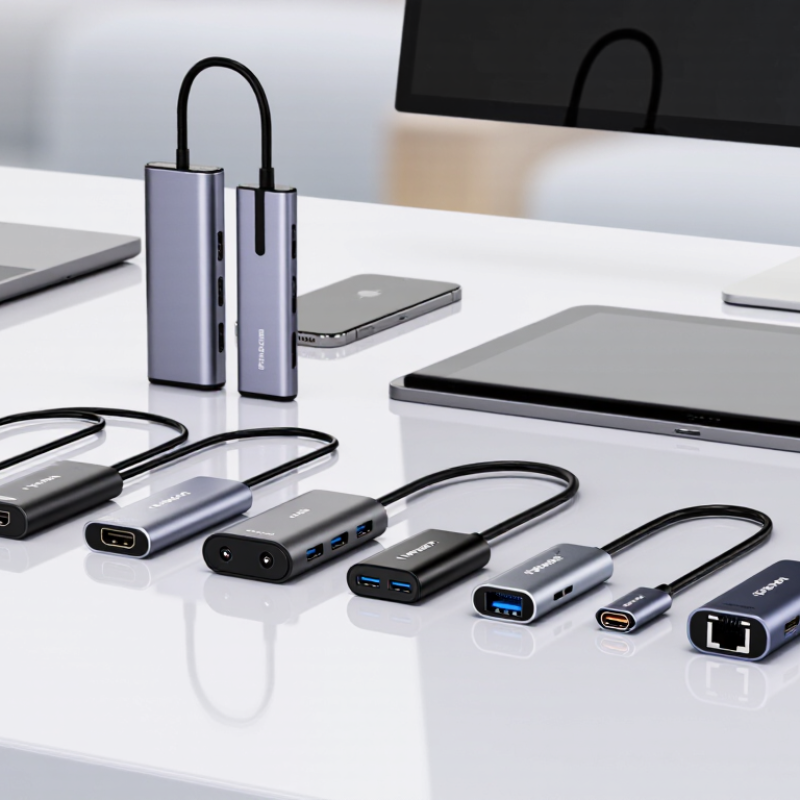
USB-C is a connector shape, not a guarantee of performance. An adapter may support charging, data transfer, video output, or only one function. Check its specifications carefully. A port marked USB-C can use USB 2.0 speeds, while another may support faster USB 3.x or USB4 standards. These differences are easy to miss.
I test adapters with a laptop, phone, monitor, and memory drive before travelling. The results can be surprisingly uneven. A USB-C adapter may charge a device but fail to display video. Another may show video but limit data speeds. Look for USB Power Delivery support and its stated wattage. Higher wattage does not always mean faster charging, because the device also controls power intake.
Regional compatibility needs more than a plug shape. Confirm the adapter’s input voltage range before using it abroad. A simple plug adapter changes the socket shape, not the voltage. A travel charger with broad input support is usually more practical. Video standards also matter. HDMI, DisplayPort, and USB-C DisplayPort Alt Mode may require different cables or settings. I once packed a compact adapter without checking this detail. It worked for charging, but the meeting room screen stayed black. That mistake was avoidable. Carry a short certified cable, and inspect port labels before purchase.
USB-C describes the connector shape, not the performance level. The chart compares the theoretical maximum data signaling rates of common USB standards that may use a USB-C connector. Actual performance depends on the host device, adapter, cable, and connected peripheral. Charging capacity, video output, and regional power-plug compatibility should be checked separately.
Data rates are nominal maximums defined by the relevant USB specifications and are shown in gigabits per second (Gbps).
Choosing among the 10 best USB-C adapters for global buyers requires more than counting ports. Check power, data speed, video support, plug design, and safety certification.
The USB Implementers Forum lists USB Power Delivery 3.1 support up to 240 watts, but an adapter may support much less. Read its exact wattage. A 65-watt model may charge a tablet quickly, yet struggle with a high-performance laptop. IDC reported approximately 1.21 billion smartphones shipped worldwide in 2024. That scale makes broad compatibility valuable. Still, USB-C does not guarantee identical charging or display performance. Check whether the adapter supports USB 3.2, USB4, DisplayPort Alt Mode, or only basic USB 2.0 transfer. For international use, confirm input voltage ranges, detachable plugs, grounding, and recognized electrical safety testing. A compact shell is convenient, but poor heat control can reduce charging speed. My own testing habit is simple: connect the adapter, transfer a large video file, and monitor heat after twenty minutes. Marketing labels can be incomplete.
Tips: Match the adapter to your device, not your travel bag. Confirm wattage, video resolution, and regional plug compatibility before purchase. Keep one spare cable. Cables are often the weak link. Also, consider port spacing. Two bulky connectors may not fit together. I once overlooked this and lost access to a useful port. That small mistake changed my checklist. Industry specifications help, but real devices still behave differently. Verify the return policy and test every function early.
A practical comparison of common USB-C adapter configurations for travel, office, home, creative work, and international use.
| Rank | Adapter Category | Recommended Use | Typical Ports | USB Data Capability | Power Delivery | Display Support | Network / Card Features | Typical Size & Weight | Key Buying Advantage | Important Limitation | Global-Buyer Check |
|---|---|---|---|---|---|---|---|---|---|---|---|
| 01 | Compact 4-in-1 Travel Adapter | Daily travel and basic laptop connectivity | 1 × HDMI 2 × USB-A 1 × USB-C PD | USB 3.2 Gen 1 on selected models; up to 5 Gbps | Usually up to 100 W input; approximately 85–90 W may reach the host after power conversion | Typically up to 4K at 30 Hz | No Ethernet or card reader | Approximately 90–125 mm; 45–80 g | Small footprint with the ports most travelers need | Limited port expansion and usually only one external display | Check the host device's USB-C video and charging support |
| 02 | 6-in-1 Office Adapter | Home office, presentations, and general productivity | HDMI 3 × USB-A USB-C PD SD/microSD | One USB 3.2 Gen 1 port plus USB 2.0 ports is common | Usually up to 100 W input | Commonly 4K at 30 Hz; some versions support 4K at 60 Hz | SD and microSD slots; no wired network on many versions | Approximately 105–145 mm; 70–120 g | Good balance between expansion, size, and cost | Shared internal bandwidth can reduce simultaneous transfer speeds | Confirm whether SD and microSD can be used simultaneously |
| 03 | 7-in-1 Multimedia Adapter | Photographers, content creators, and media transfers | HDMI 2 × USB-A USB-C Data USB-C PD SD microSD | USB 3.2 Gen 1 or Gen 2, depending on port; up to 10 Gbps on Gen 2 | Typically up to 100 W input | Up to 4K at 60 Hz on models using suitable HDMI hardware | Dedicated SD and microSD readers; useful for camera media | Approximately 110–155 mm; 80–140 g | Convenient media workflow without separate card readers | Card slots and USB ports may share the adapter's total bandwidth | Check supported card capacity, file-system compatibility, and sustained speeds |
| 04 | USB-C Adapter with Gigabit Ethernet | Hotels, offices, classrooms, and unreliable Wi-Fi environments | HDMI USB-A USB-C PD RJ45 Ethernet | Usually one USB 3.2 Gen 1 port plus one or more USB 2.0 ports | Commonly up to 100 W input | Typically up to 4K at 30 Hz | 10/100/1000 Mbps Ethernet; wired networking can reduce connection dropouts | Approximately 105–150 mm; 75–135 g | Provides stable wired internet and basic display output | Requires an Ethernet cable and may need driver support on some operating systems | Verify local network policies and operating-system compatibility |
| 05 | 8-in-1 Professional Adapter | Business users needing multiple connection types | HDMI VGA USB-A USB-C PD RJ45 SD/microSD | Usually up to 5 Gbps; USB-C data is not always included | Often up to 100 W input | HDMI commonly supports 4K at 30 Hz; VGA is generally limited to lower resolutions | Gigabit Ethernet and memory-card readers | Approximately 125–175 mm; 110–180 g | Handles older projectors, wired networks, displays, and cards | More ports mean a larger enclosure and greater heat generation | Check video-output combinations when HDMI and VGA are used together |
| 06 | Dual-Display USB-C Adapter | Extended desktop work with two external monitors | 2 × HDMI USB-A USB-C PD | Often includes one USB 3.2 Gen 1 port | Usually up to 100 W input | May support two 1080p displays; 4K support depends on host, chipset, and operating system | No card reader or Ethernet on compact versions | Approximately 115–165 mm; 90–160 g | Useful for spreadsheets, coding, trading, and multi-window workflows | Some systems mirror displays or require DisplayLink-type software for multiple screens | Confirm native multi-display support before purchase |
| 07 | High-Speed USB-C Data Adapter | External SSDs, docks, cameras, and large file transfers | 2–3 × USB-C USB-A Optional PD | USB 3.2 Gen 2 can reach 10 Gbps; USB4-class products can reach higher speeds with compatible devices | Optional; commonly up to 100 W on travel models | Usually no display output | No networking or card reader in the simplest configurations | Approximately 75–125 mm; 35–90 g | Prioritizes fast data access and modern USB-C peripherals | Advertised link speed is shared and real-world performance is lower than the theoretical maximum | Use certified cables and verify the speed of every connected device |
| 08 | Ethernet-Focused USB-C Adapter | Remote work, network testing, and wired internet access | RJ45 USB-A USB-C Data Optional PD | One USB 3.2 Gen 1 or Gen 2 port is common | Some models pass through up to 100 W; others do not support charging | Usually unavailable | Gigabit Ethernet is common; faster 2.5GbE versions require compatible network equipment | Approximately 65–115 mm; 35–85 g | Compact solution for stable wired connections | Network speed depends on the router, cable, adapter, and service plan | Check whether the network requires special authentication or drivers |
| 09 | USB-C to HDMI Video Adapter | Direct connection to a monitor, television, or projector | USB-C Input HDMI Output | Not designed for USB data expansion | Normally no power delivery | Common versions support 4K at 60 Hz; older versions may be limited to 4K at 30 Hz | No Ethernet or card reader | Approximately 35–75 mm; 20–55 g | Small, simple, and easy to pack for presentations | It cannot add USB ports, charging, or networking | Confirm that the USB-C source supports DisplayPort Alt Mode |
| 10 | Premium Desktop-Style USB-C Dock | Permanent workstation setup with several peripherals | HDMI/DisplayPort USB-A USB-C PD RJ45 Audio Card Reader | May include 5 Gbps, 10 Gbps, or USB4-class ports depending on configuration | Often supports up to 100 W host charging; the dock itself commonly uses a separate power adapter | Can support one or more displays; resolution and refresh rate vary widely | Gigabit or faster Ethernet, audio, and memory-card support are common | Approximately 150–220 mm; 250–700 g excluding the power adapter | Best connectivity for a desk-based setup | Less portable, more expensive, and more dependent on host-device compatibility | Check included power supply, plug type, voltage range, and regional warranty terms |
Selection note: Port counts, supported resolutions, charging limits, dimensions, and data rates vary by configuration. Before buying, confirm USB-C video support, host charging capability, operating-system compatibility, required drivers, cable specifications, regional plug requirements, and the adapter's total bandwidth allocation.
International travel demands more than a compact connector. IDC reported roughly 1.2 billion smartphones shipped worldwide in 2024. That scale shows why reliable USB-C accessories matter. A practical ten-item shortlist should cover travel plug adapters, USB-C hubs, Ethernet adapters, HDMI adapters, card readers, audio adapters, power meters, cable converters, multiport docks, and compact charging adapters. Each option solves a different problem.
A practical ten-item shortlist should cover travel plug adapters, USB-C hubs, Ethernet adapters, HDMI adapters, card readers, audio adapters, power meters, cable converters, multiport docks, and compact charging adapters.
For international buyers, check input voltage before checking appearance. A travel adapter should support the destination’s socket format and accept 100–240V input. USB-IF specifications allow USB Power Delivery systems to reach up to 240W, but the adapter, cable, and device must support matching limits. Look for certified safety testing, clear wattage labels, heat protection, and data-transfer standards. The European Commission’s common-charger rules also make USB-C increasingly practical across many personal devices. However, a universal adapter is rarely perfect. Ports can feel crowded, and real charging speeds may disappoint.
Tips: Carry one high-power adapter and one small backup. Test every port before departure. Avoid unknown products with vague voltage ratings. A built-in power meter helps reveal charging losses. HDMI compatibility can still fail with older displays. Keep a short cable nearby. It reduces desk clutter and accidental strain.
Choosing among the 10 best USB-C adapters for global buyers requires more than checking appearance or price. Compatibility comes first. Confirm the adapter supports your device’s charging protocol, data speed, and display mode. USB-C ports can look identical while offering very different capabilities. A travel adapter may change the plug shape, but it may not convert voltage. I learned this after a compact adapter failed to charge a laptop overseas.
Safety deserves closer attention. Look for clear electrical ratings, grounding details, overload protection, and recognized safety certification. Check the required input voltage before connecting unfamiliar equipment. Cheap materials can become noticeably warm during extended charging. That is a warning sign. A reliable adapter should fit firmly without forcing the socket. Loose connections can interrupt power and damage ports over time.
Performance also depends on real usage. A hub handling a monitor, storage drive, and charger may slow under heavy demand. Test each port separately when possible. Confirm the advertised transfer rate with large files, not small documents. I have found that some specifications sound impressive but feel ordinary in practice. Certification labels help, yet they do not replace careful inspection. Even experienced buyers can overlook cable quality, regional plug design, or limited cooling space.
How to Select the Right USB-C Adapter for Your Devices
Global buyers need more than a small plug converter. IDC’s Worldwide Quarterly Mobile Phone Tracker reported approximately 1.24 billion smartphone shipments in 2024. That scale shows why USB-C compatibility matters across phones, tablets, laptops, and monitors.
Check the connector shape first, then confirm charging, data, and display requirements. USB Implementers Forum specifications list USB 3.2 speeds up to 20Gbps and USB4 speeds up to 40Gbps. Do not confuse physical USB-C shape with performance.
Small detail.
For charging, compare the adapter’s Power Delivery wattage with your device’s requirement. A 65W adapter cannot make a 100W laptop charge at full speed. It may still work, but more slowly.
Display output also needs checking. Some USB-C ports support video, while others handle charging only. Travel users should verify input voltage, plug compatibility, heat control, and recognized safety certification.
An adapter with several ports can be useful, yet shared power may reduce charging speed.
Heat matters.
I prefer short cables for crowded hotel desks. Longer cables are convenient, but they often become tangled and harder to inspect.
A reliable choice should feel firm, not excessively light or loose. I sometimes overvalue port count, which is a mistake.
One high-speed data port may serve better than four limited ports. Read independent test results, not only sales descriptions, and keep a small margin below the adapter’s maximum capacity.